



Own Your Very Own Songbird
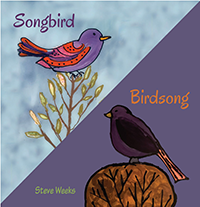
Well, Steve finally did it. His latest song “Songbird” put on vinyl; a 45 RPM vinyl single to be exact. If you’re interested in owning a copy, read on.
"This has been a bucket list of mine for some time now", Steve says, "I had quite the extensive vinyl collection when I was younger, and I miss those days when I’d drop the needle on a new record and hear that warm hiss and crackle before the music started. I wore the grooves out on some records listening to them so much."
The song itself is a quiet little tune about a bird Steve met on the side of a bike trail once. The B-side is“Birdsong”, one of the hits from the CD Dandelion. It’s more rockin’ and has 179 birds in the lyrics. The cover contains artwork from Colorado artist Lori DiPasquale.
To make each copy unique, Steve is hand-drawing each of the birds from “Birdsong” on the cover of one single. If you’d like to purchase one of these one-of-a-kind singles, check out the link below for more information.
